Seedream 5.5 AI Image Generator for Creative Photo Editing
Prepare your next image project for Seedream 5.5 on SeaImagine. Start with a scene description or a reference photo, define the composition, and develop a brief for generation or editing.
Image Examples of Seedream 5.5
Explore multi-step photo editing, transparent PNG compositing, and posters with text.
Change the Weather and Lighting in Two Edits
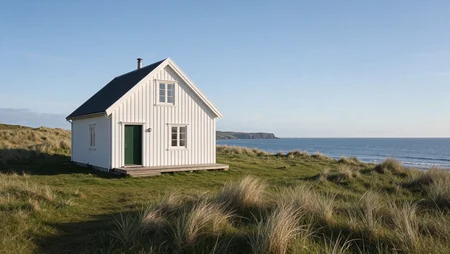
Original · Sunny coast
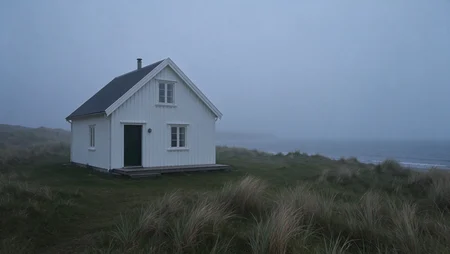
Edit 1 · Coastal fog
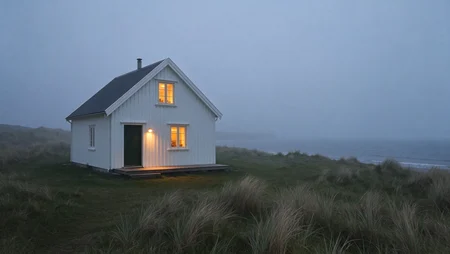
Edit 2 · Windows and porch lights on
Add a Transparent Patch to a Suitcase

Transparent embroidered swallow PNG
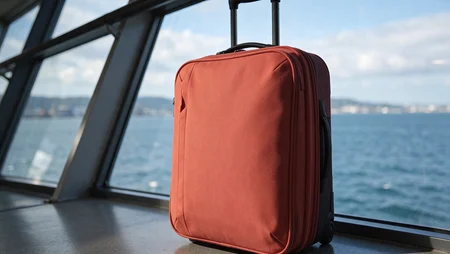
Suitcase before editing
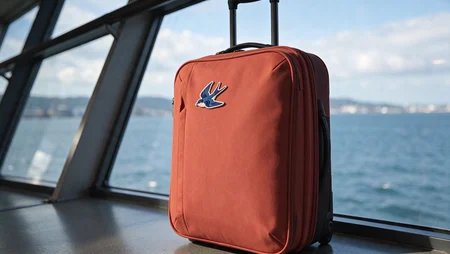
Suitcase with the swallow patch
Create Posters With Text
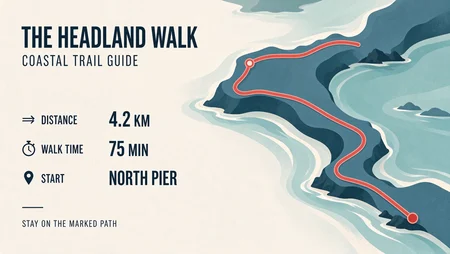
The Headland Walk · Trail guide
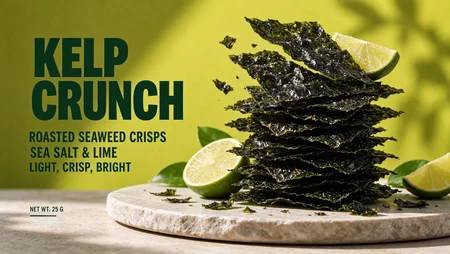
Kelp Crunch · Snack ad
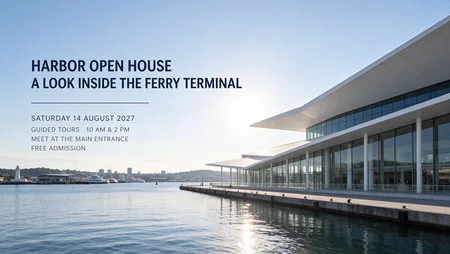
Harbor Open House · Event poster
Plan Text-to-Image and Reference Editing with Seedream 5.5
Build an image brief around a written scene or an existing photo. Use the generation form to explore the workflow with the model currently selected.
Describe the Image You Want to Create
Specify the main subject, surroundings, lighting, and viewpoint in a text prompt. Concrete visual details help turn a broad idea into an image brief you can evaluate.
Use a Photo as the Starting Point
Upload a reference image and explain the intended edit. Separate the requested changes from the details you want retained, such as the subject’s pose or the product’s shape.
Choose a Composition for the Final Layout
Plan a portrait, square, or landscape composition, then select from the aspect ratios available in the form. Leave room for text or surrounding design elements when your layout needs it.
Develop an Image through Focused Revisions
Review the output and identify a specific change to lighting, background, or composition. Use that observation to write a clearer prompt for the next image.
Turn a Creative Brief into an Image Plan for Seedream 5.5
Use the image workflow to make decisions about inputs, composition, and revisions before producing a set of visuals.
Begin with Words or Existing Material
A written prompt gives an imagined scene a starting point; a reference photo anchors an edit to existing material. Choose the input that best represents what is already decided in your brief.
Compare One Visual Choice at a Time
Keep the subject and composition stable in your instructions while changing a color, backdrop, or lighting direction. Review the generated alternatives to decide which treatment supports the brief.
Design with the Destination in Mind
Describe the space needed for a headline, product label, or surrounding layout. Generate the image as a design asset, then finish precise text and placement in your editor.
Carry Useful Results into the Next Revision
Review your images in Create and use a promising result as a reference for further editing. Keep the changes specific so you can assess how each revision develops the original idea.
Prepare Product, Portrait, and Campaign Images for Seedream 5.5
Create practical briefs for text-generated images and reference edits, using the subject and final layout to guide each request.
Explore a Product Campaign Background
Upload a product photo and describe a surface, backdrop, and light direction. Review the edited image for accurate product shape and labeling before placing it in a campaign layout.
Develop a Portrait with a New Setting
Use a portrait as the reference and request a different environment or lighting treatment. Check the resulting face, pose, and fine details against the original photograph.
Create a Social Post Illustration
Describe a clear subject and a palette suited to your post. Generate an image with open space for a headline, then add final typography in your design tool.
Visualize an Interior or Story Environment
Write a scene brief covering materials, atmosphere, viewpoint, and objects. Use the generated image as a concept study to refine the art direction for a larger project.
How to Prepare Seedream 5.5 Image Projects on SeaImagine
Write a scene prompt or upload a photo, review the model and output options shown in the form, and generate an image to evaluate your creative direction.
Describe a new image or upload a reference for editing
Review the selected model, output settings, and credit cost
Generate an image and refine your brief from the result
Understand the Seedream 5.5 Page and Image Workflow
Find answers about the current generation model, prompt writing, reference photo edits, and choosing settings for your images.
Prepare Image Prompts and Editing Briefs for Seedream 5.5
Read image creation guides on describing scenes, choosing reference photos, composing product visuals, and refining generated images with clearer editing instructions.