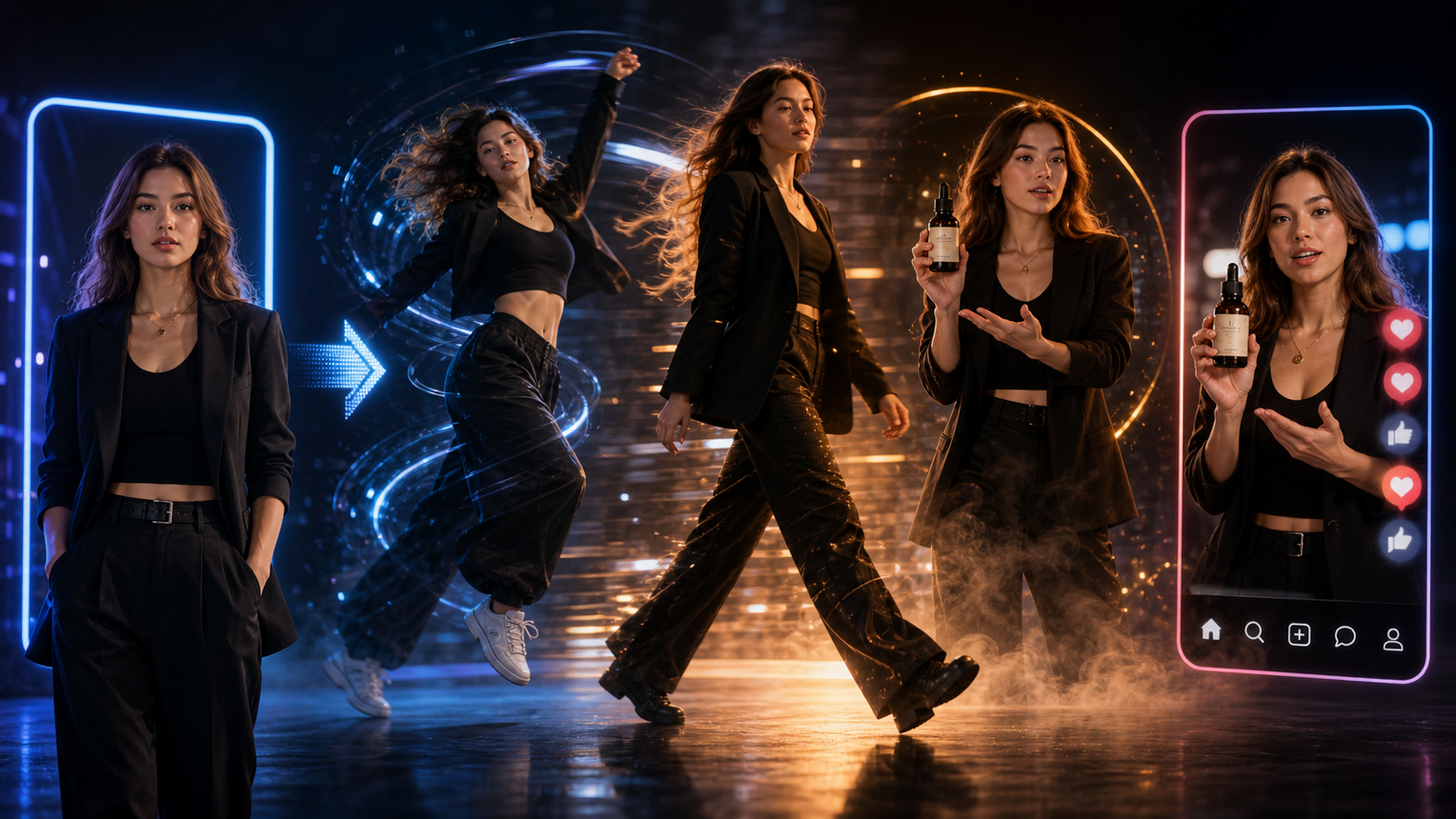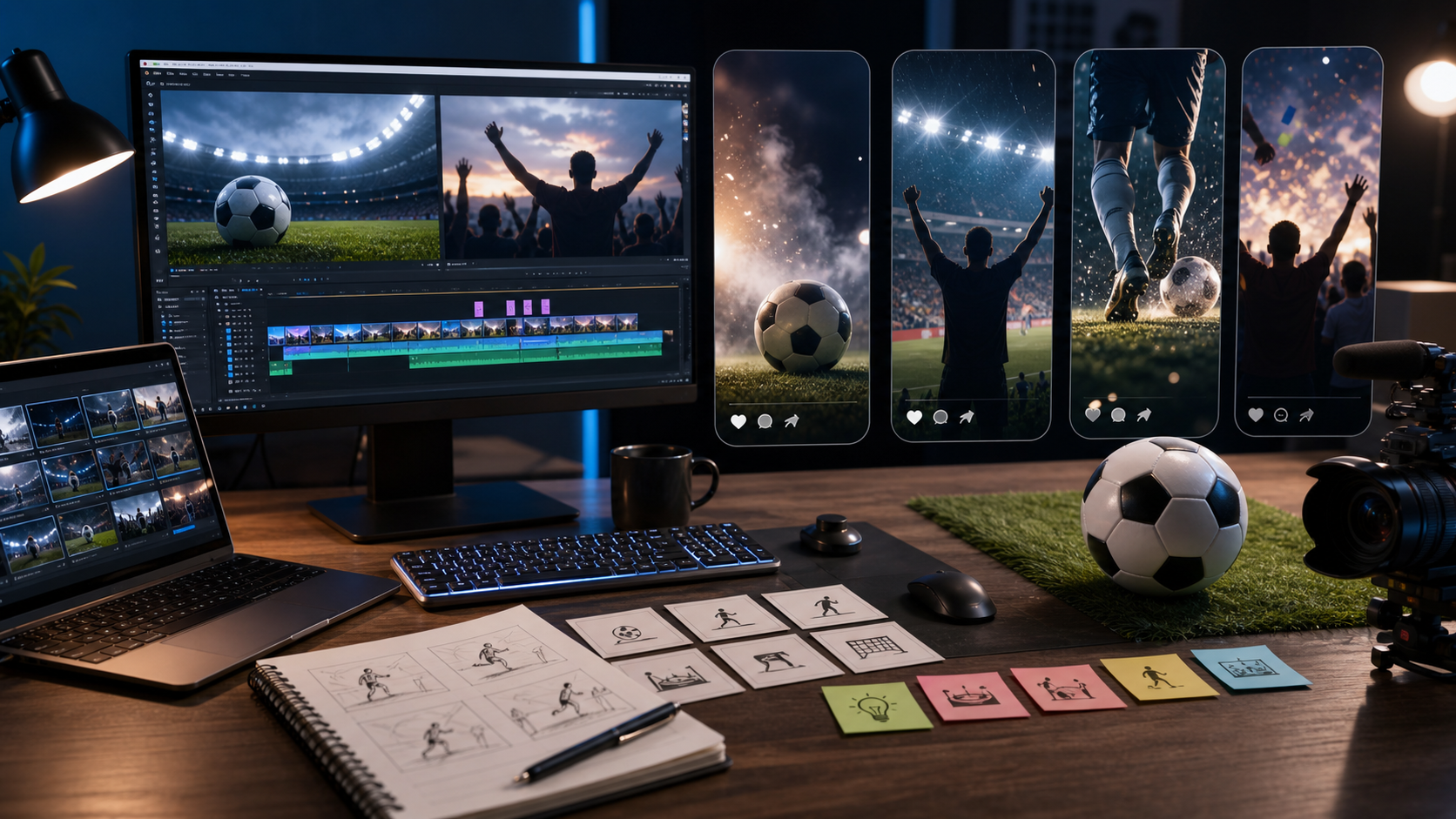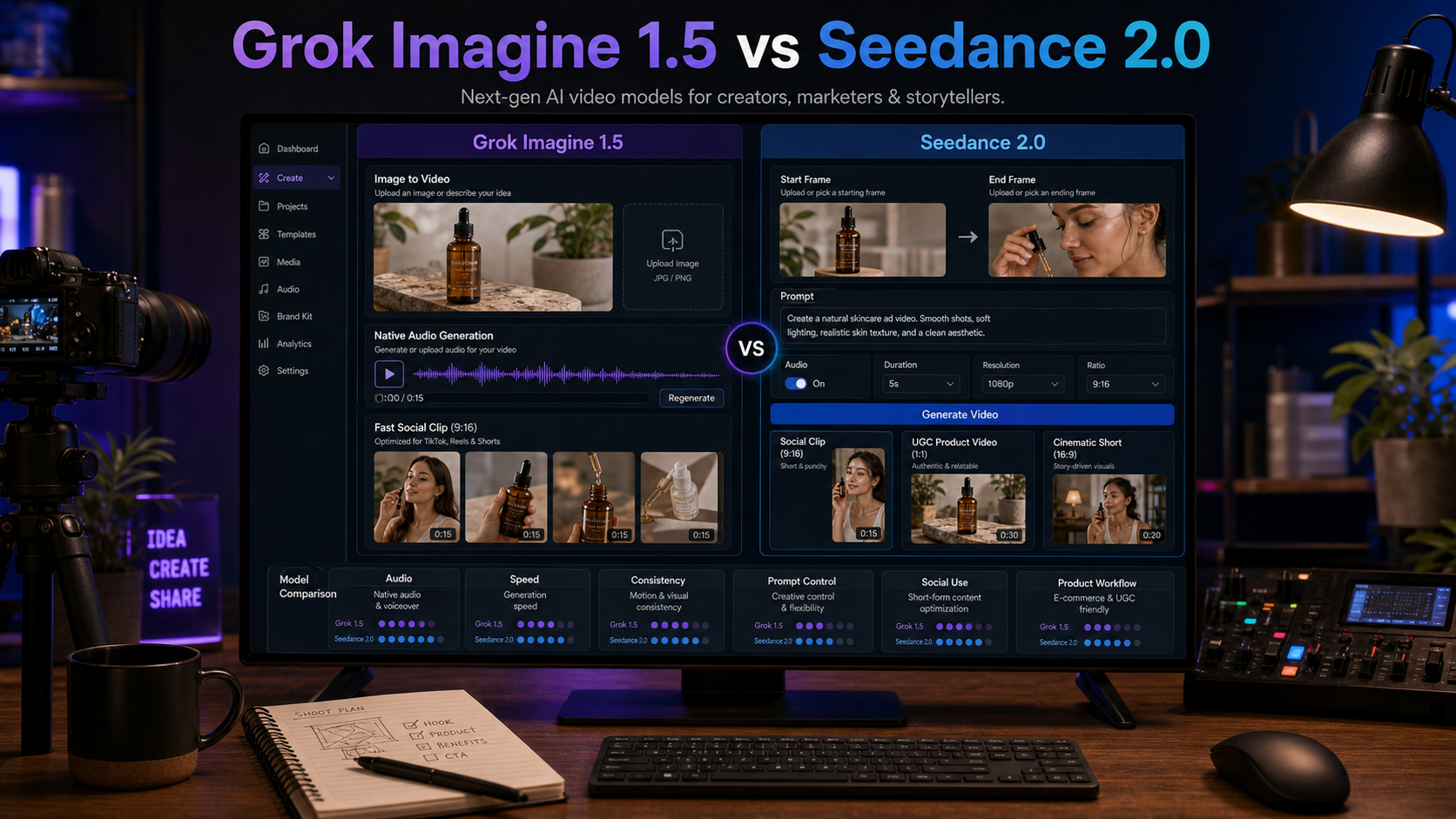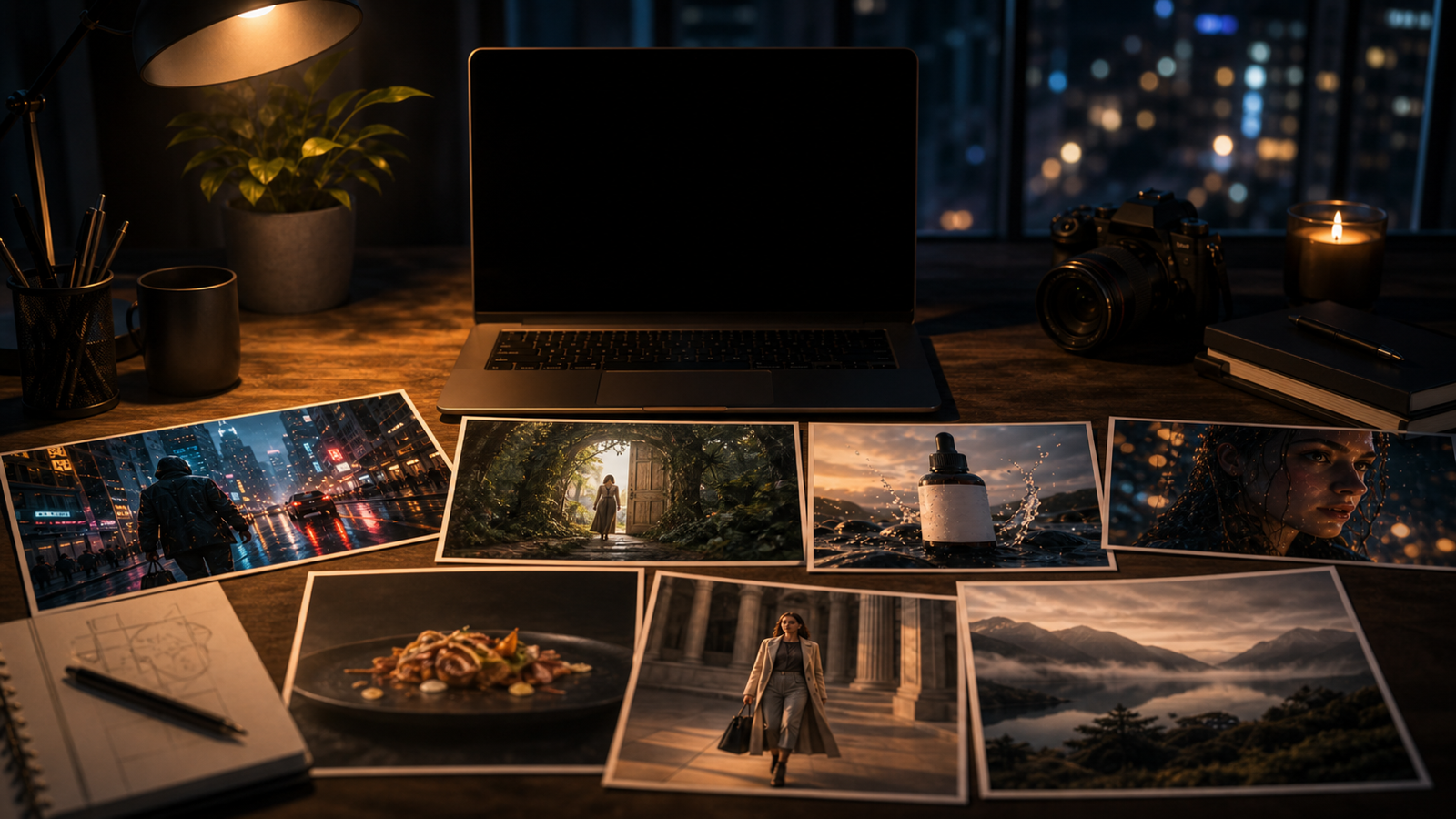
Luma Dream Machine is a useful choice when you want short cinematic AI videos from a prompt, a reference image, or a planned shot idea. On VideoWeb AI, creators can test Luma-style video generation beside broader workflows such as AI Video Generator, Image to Video, Text to Video, Photo to Video, AI Music Video Generator, and 4K Video Generator.
This guide explains where Luma Dream Machine works best, how to write stronger prompts, how to use image-to-video and start-frame or end-frame planning, and what to verify before publishing a clip.
Luma Dream Machine on VideoWeb AI: What the Page Offers
Luma Dream Machine on VideoWeb AI is positioned as a direct model page for creating video from text or image inputs. The visible model label on the page is Dream Machine 1.6, with a creator-friendly setup that includes prompt entry, image upload, aspect ratio selection, and generation controls.
For a practical workflow, treat the page as a focused place to test cinematic movement, image animation, fantasy shots, social clips, product motion, and short narrative ideas. VideoWeb AI also gives you neighboring creation routes through its AI video generator, text-to-video, image-to-video, photo-to-video, music video, and 4K video pages, which makes it easier to compare models and workflows without planning every clip from scratch.
Before publication, check the live page for the current model version, credit cost, duration options, generation time, watermark behavior, rights language, and privacy terms. These details can change, so the page itself should be the final source for production decisions.

Where Luma Dream Machine Works Best for AI Video Creation
Luma Dream Machine is strongest when the video idea depends on motion, mood, and a clear camera direction. It is especially useful for cinematic atmosphere, emotional scenes, fantasy moments, image animation, meme reactions, product reveals, and social-first clips that need a strong visual hook in only a few seconds.
Use it when the shot can be described clearly: a subject, an action, a camera move, a lighting style, and a mood. For example, a rainy city push-in, a product rotating under studio light, or a character turning toward the camera are easier to guide than a vague request for a "cool video."
Creators should also compare Luma Dream Machine with adjacent VideoWeb models such as Runway Gen-4 Turbo, Kling 3.0, Seedance 2.0, and Veo 3.1 when the job depends on a specific type of realism, motion control, speed, or prompt obedience.

How to Use Luma Text to Video on VideoWeb AI
For Luma text to video work, start with a compact prompt that reads like a shot brief. The best prompts usually include duration, subject, setting, action, camera movement, lighting, mood, style, and aspect ratio.
Use this reusable text-to-video formula:
Create a [duration] AI video showing [subject] in [setting]. The subject is doing [specific action]. Camera: [push-in / tracking shot / handheld / dolly / pan / static close-up]. Lighting: [cinematic / golden hour / neon / studio / soft natural light]. Mood: [emotional / suspenseful / playful / premium / surreal / documentary]. Style: [realistic / cinematic / product ad / UGC / meme / fantasy]. Output should be [aspect ratio] for [TikTok / Reels / Shorts / YouTube / ad / blog].
For short-form video, choose a single visual event rather than a full storyline. A 5-second cinematic street shot, a quick product reveal, or a meme reaction clip is usually more controllable than a multi-scene script.

How to Use Luma Image to Video and Photo to Video
Luma image to video is useful when you already have a product photo, portrait, poster, food image, or scene reference. The image anchors the subject and composition, while the prompt tells the model what motion to add.
Use this reusable image-to-video formula:
Use this uploaded image as the first frame. Preserve [subject / product / face / object / layout / color palette / composition] while adding [camera movement / subject motion / background motion / light shift / atmosphere]. Keep the motion smooth, the subject stable, and the video suitable for [social clip / product ad / cinematic scene / meme video / story shot].
For product videos, explicitly preserve the product shape, label area, material, and color palette. For portraits, preserve facial identity, hairstyle, expression, and skin texture. For posters or social graphics, preserve the layout and add depth, parallax, light movement, or camera drift rather than changing the design.

Start-Frame and End-Frame Control for Better Shot Planning
Start-frame and end-frame planning helps turn Luma Dream Machine from a prompt toy into a repeatable creative workflow. Instead of asking for a broad transformation, you define where the shot begins, where it should end, and what should remain consistent between the two moments.
Use this formula when your workflow supports two reference frames:
Use the first image as the starting frame and the second image as the ending frame. Create a smooth transition from [starting situation] to [ending situation]. Preserve [subject identity / product shape / scene style / lighting direction] while adding [camera move], [motion details], and [emotional tone].
This is useful for product reveals, outfit transitions, before-and-after story beats, poster animation, and short narrative shots. For social clips, keep the transition simple: one subject, one camera move, one emotional shift, and one clear final frame.

Prompt Examples for Luma Dream Machine Video Generation
Prompt examples are the fastest way to benchmark a Dream Machine AI video generator workflow. Run a few different prompt types, then compare motion smoothness, subject stability, camera obedience, artifact rate, facial consistency, and whether the clip fits the intended platform.
- Create a 5-second cinematic video of a lone traveler standing on a rainy city street at night, neon reflections on the pavement, slow camera push-in, soft wind, realistic atmosphere, 16:9.
- Use this product photo as the first frame. Preserve the product shape and label area. Add a slow rotating camera move, soft studio light, subtle reflections, premium ecommerce ad style, 9:16.
- Create a short fantasy scene of a glowing doorway opening inside an ancient forest, drifting mist, slow dolly-in, warm magical light, cinematic realism, no text.
- Use this portrait as the reference. Preserve facial identity, hairstyle, and expression. Add gentle camera movement, soft studio background motion, realistic skin texture, and natural light shift.
- Create a food video showing a hot bowl of noodles on a restaurant table, visible steam rising, slow close-up, warm light, shallow depth of field, appetizing motion, 4-6 seconds.
- Create a social meme video of a fictional office worker slowly turning toward the camera with exaggerated disbelief, quick zoom-in, clean lighting, blank caption space, 9:16.
- Use this poster image as the first frame. Add cinematic parallax, moving light particles, subtle camera drift, and depth while preserving the layout and main subject.
- Create a travel reel shot of a cafe table beside a busy street, sunlight moving across the table, soft camera pan, warm editorial color, natural ambient mood, 9:16.
- Create a product launch teaser with a black box opening under dramatic studio light, slow camera push, soft smoke, premium reveal mood, clean background, 16:9.
- Create a surreal dream video of floating paper boats moving through a moonlit room, gentle camera pan, soft blue lighting, poetic atmosphere, realistic shadows.
- Create a fashion lookbook clip of a fictional model walking across a minimalist studio, soft wind in clothing, side-tracking camera, editorial lighting, stable body proportions, 9:16.
- Create three versions from the same reference image: one cinematic, one UGC ad, and one meme-style social clip. Keep the subject stable while changing only camera motion, pacing, and lighting.
For testing, save the prompt, input image, chosen aspect ratio, generation settings, and final output notes. That creates a practical comparison record for future VideoWeb AI video generator work.

Practical Review: Pricing, Credits, Watermarks, Rights, Privacy, and Quality
Review Luma Dream Machine on VideoWeb AI by checking the live workflow rather than relying on old screenshots. At the time of writing, the VideoWeb model page displays Dream Machine 1.6 and shows a listed credit cost for generation, while VideoWeb's pricing page explains monthly credit plans and says generated videos do not carry a VideoWeb watermark on paid tiers.
For publication, verify these items directly on VideoWeb AI:
| Item to check | Why it matters | Where to verify |
|---|---|---|
| Model version | Confirms whether the page still uses Dream Machine 1.6 or another model label | Luma Dream Machine model page |
| Credits and pricing | Affects cost per test, retry, and campaign batch | Model page and pricing page |
| Watermark behavior | Affects paid ad, portfolio, and client delivery use | Pricing page and plan details |
| Duration and aspect ratio | Determines suitability for Shorts, Reels, ads, and YouTube | Generation controls |
| Generation time | Affects batch planning and iteration speed | Live test run |
| Commercial-use language | Affects brand and client publishing decisions | Terms, pricing, and account plan details |
| Privacy terms | Affects uploaded product photos, portraits, and client assets | Privacy policy and terms |
| Output quality | Needs direct review across prompts, references, and retries | Finished clips |
Quality should be judged by use case. Product clips need stable shape and label areas. Meme videos need readable facial timing and blank caption space. Cinematic scenes need smooth motion, convincing atmosphere, and consistent lighting. Short narrative shots need continuity from frame to frame.

Recommended VideoWeb AI Workflow for Creators
The most reliable VideoWeb AI workflow is to test one idea through several routes, then choose the model and tool that matches the final use case. Start with Luma Dream Machine for cinematic motion or image animation, then compare the result with AI Video Generator, Image to Video, Text to Video, Photo to Video, AI Music Video Generator, or 4K Video Generator when the project needs a different finish.
Use this order for repeatable work:
- Write one clear shot prompt.
- Choose text-to-video or image-to-video.
- Set the aspect ratio for the final channel.
- Generate a first draft.
- Review motion, subject stability, artifacts, and pacing.
- Rewrite only one or two prompt variables.
- Compare Luma with another VideoWeb model when quality or motion is not matching the brief.
- Export only after checking rights, watermark behavior, privacy fit, and client review needs.
This workflow keeps Luma Dream Machine useful for both beginners and teams because each draft teaches you what to change next.

FAQ
Is Luma Dream Machine available on VideoWeb AI?
Yes. VideoWeb AI has a dedicated Luma Dream Machine model page with text and image creation options visible on the page.
Can I use Luma Dream Machine for image-to-video?
Yes. Luma image to video workflows are a natural fit for product photos, portraits, posters, food shots, fashion images, travel scenes, and meme references. Keep the image preservation instructions specific.
What is the best prompt structure for Luma text to video?
Use a shot-brief structure: duration, subject, setting, action, camera movement, lighting, mood, style, aspect ratio, and platform. This gives the model a clearer target than a generic creative prompt.
Should I use Luma Dream Machine or another VideoWeb AI model?
Use Luma Dream Machine when you want cinematic movement, atmosphere, or image animation. Compare it with Runway, Kling, Seedance, or Veo on VideoWeb AI when your project needs a different speed, realism style, or motion-control result.
What should I verify before publishing a generated clip?
Check the current model version, credit cost, watermark behavior, commercial-use terms, privacy terms, duration, generation time, and output quality for the exact account plan and workflow you are using.

Conclusion
Luma Dream Machine is a practical VideoWeb AI option for creators who want cinematic short videos, image animation, product clips, meme motion, and social-ready drafts from prompts or reference images. The best results come from specific shot briefs, stable image references, clear camera direction, and a simple review loop that compares output quality against the final platform.
For most creators, the best starting point is Luma Dream Machine on VideoWeb AI, then branching into VideoWeb's AI Video Generator, Image to Video, Text to Video, Photo to Video, AI Music Video Generator, 4K Video Generator, and model comparison pages when the project calls for a different creative route.

SEO Title:
Excerpt:
Meta Description:
Tags: , , , , , AI video prompts