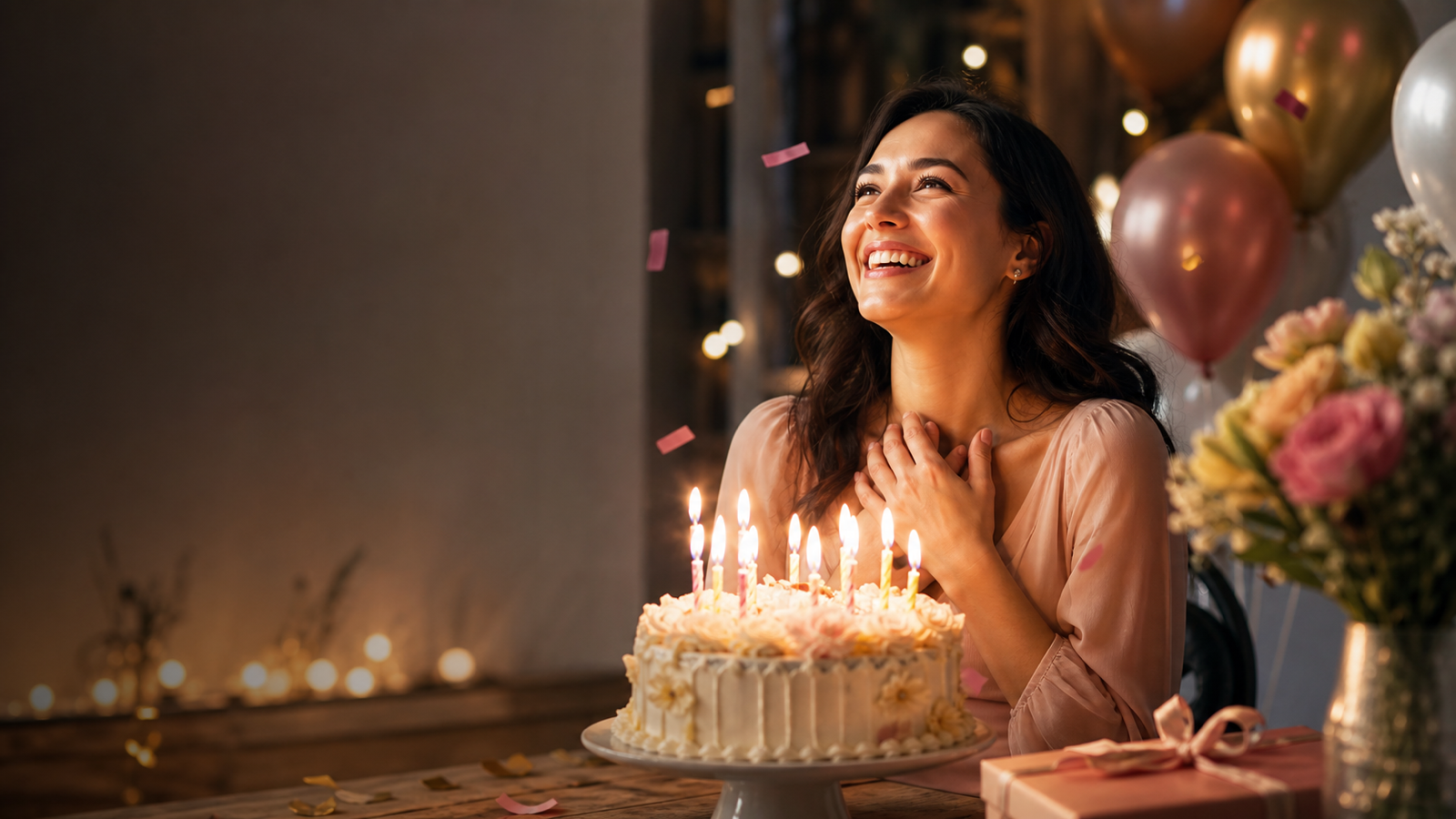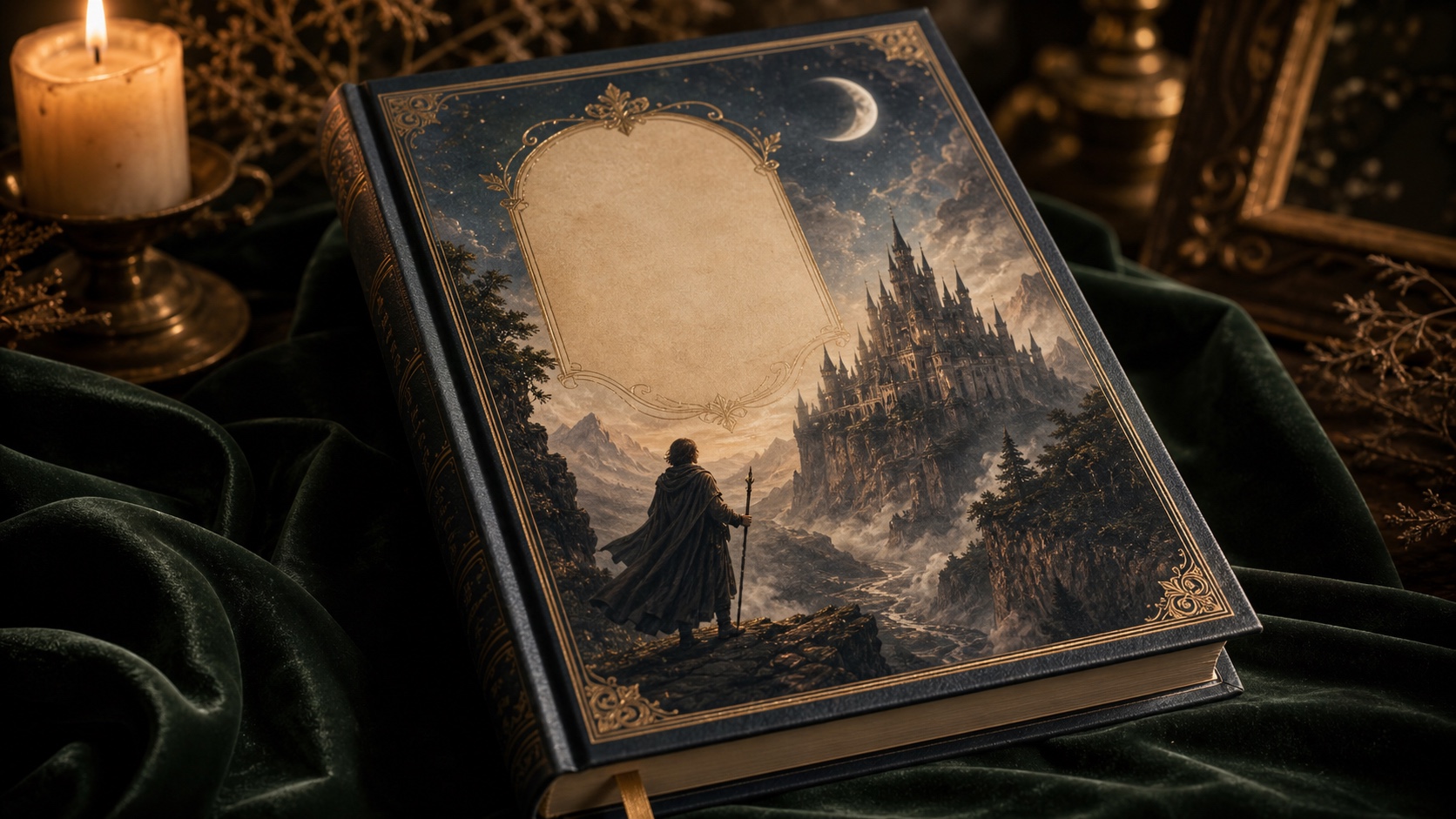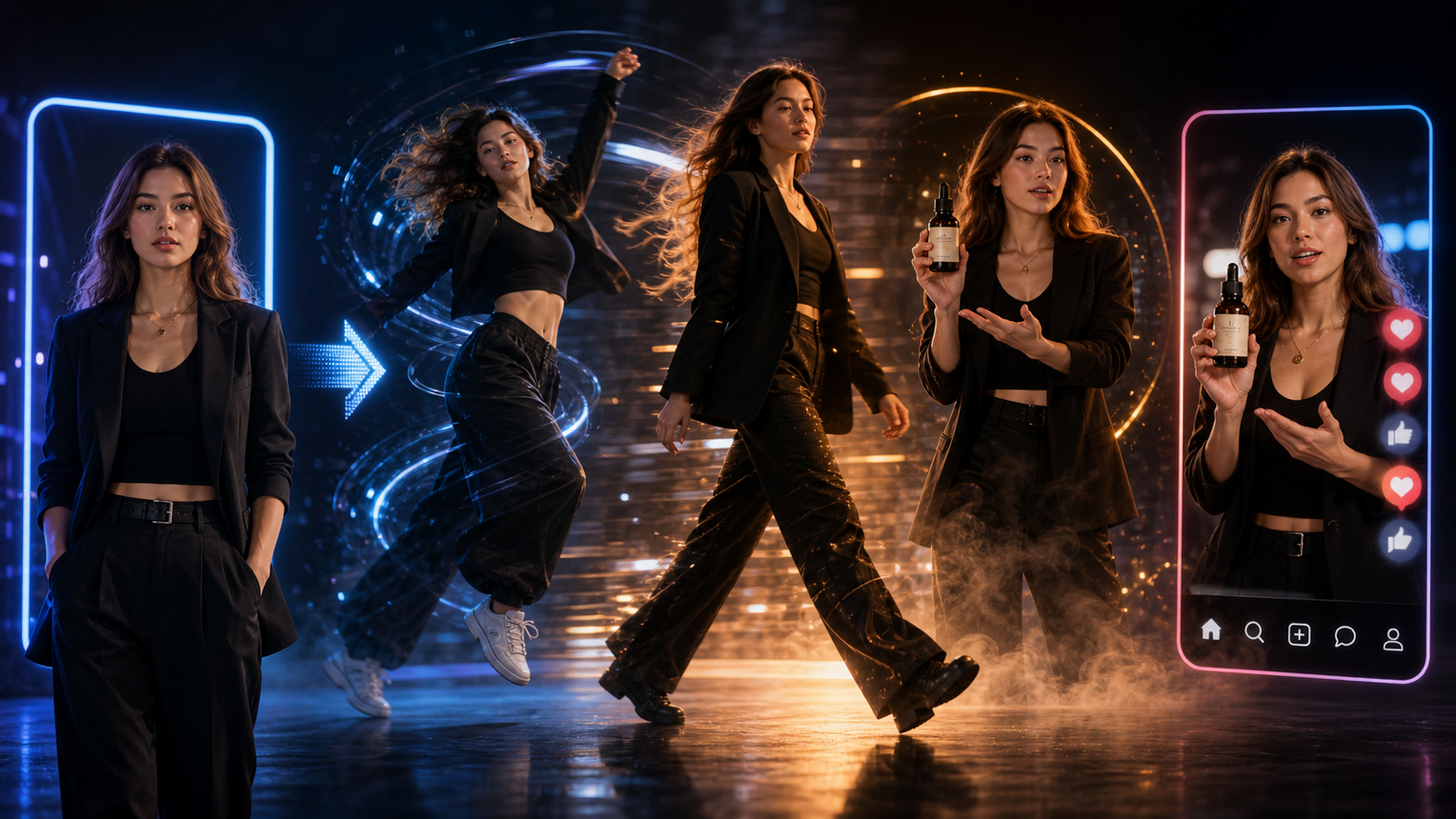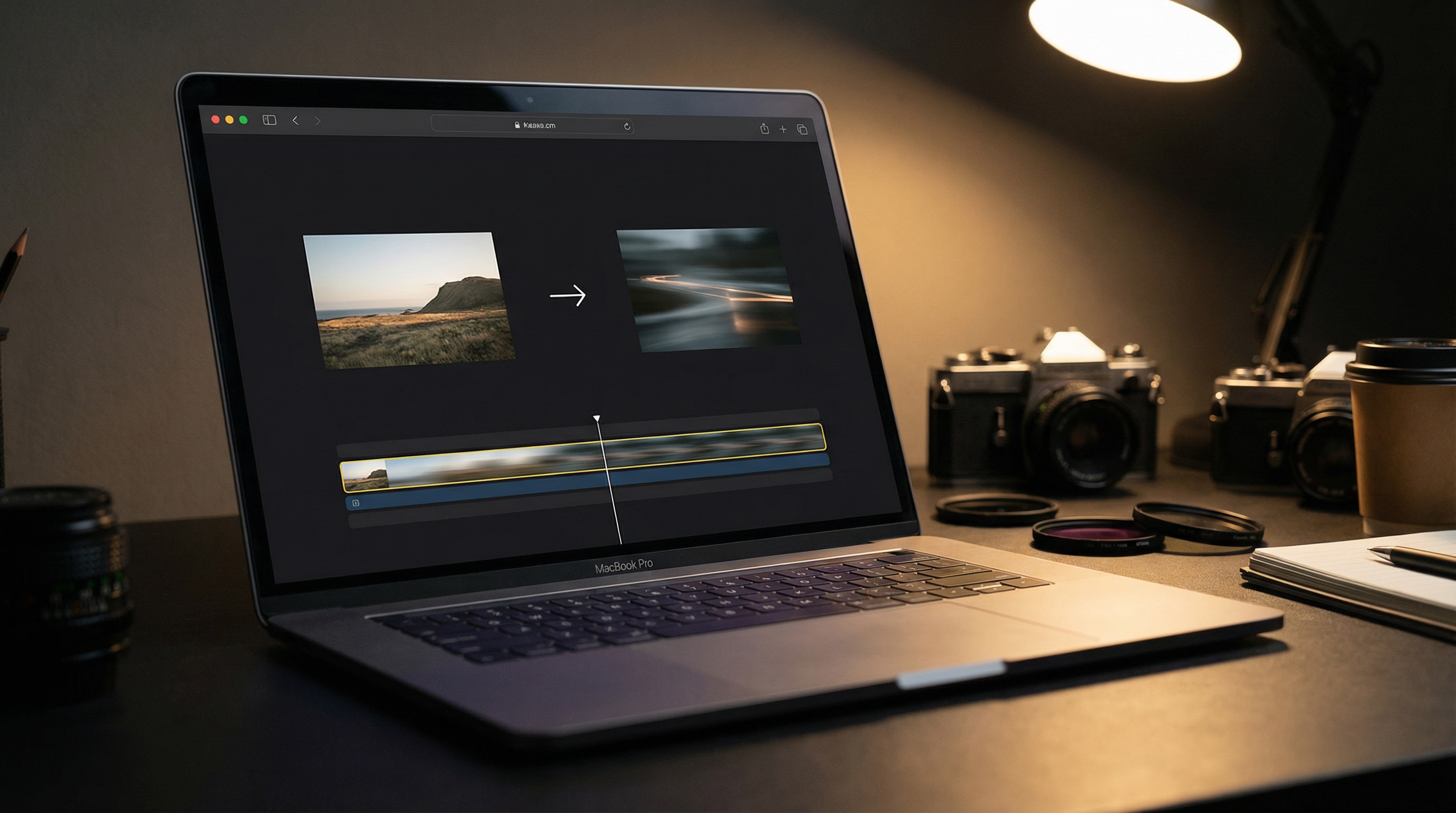
If you’ve ever tried image-to-video and thought, “Why does this feel like my picture is melting?” — you’re not doing anything wrong. Image-to-video is powerful, but it’s also picky: the quality comes less from “fancy words” and more from a clean shot plan, strong input images, and picking the right model for the job.
This article is a practical, viewer-first image to video guide for 2026: how to choose the best model on Sea Imagine AI, how to set up your shot so it looks intentional, and how to write prompts that reduce flicker, warping, and uncanny motion.
You’ll also get a reusable image to video prompt guide with copy/paste templates and examples you can adapt in seconds.
Who this image-to-video AI guide is for
This image to video ai guide is built for people who want results that feel “made,” not “generated”:
- creators making Reels/TikToks, AI influencer shots, trailer-style clips
- marketers turning product images into ad creative quickly
- storytellers animating keyframes into mood shots
- anyone learning how to turn image into video without burning credits on trial-and-error
If you only remember one rule from the whole article, remember this:
One shot, one idea, one clean camera move.
That is the secret sauce for “viewer-first” image-to-video.
Sea Imagine AI in one minute: what it’s great at (and what not to expect)
Image-to-video is best at turning a single still frame into a short, cinematic moment.
It excels at:
- subtle subject motion (breathing, hair movement, fabric flutter)
- camera movement (slow push-in, gentle pan, slight handheld)
- atmosphere (fog, rain, embers, drifting particles)
- “living frame” shots that feel like a movie still coming alive
It still struggles with:
- long continuity across many cuts
- perfect hands/teeth under heavy motion
- chaotic multi-character choreography
- complex action shots that demand exact physics frame-by-frame
So instead of asking for “everything,” treat it like you’re directing a 5–15 second shot.
Model lineup overview (ranked, best-to-use first)
Sea Imagine AI gives you multiple models, and that’s a huge advantage — because “best” isn’t one brand. It’s the right model for the shot.
Here’s a practical ranking for most creators, from most recommended to more niche:
- Wan 2.6 — best default realism + flexible creativity
- VEO 3.1 — very accurate prompt following; great when you need control
- Kling 2.6 — strong versatile motion; good all-rounder
- Wan 2.5 — strong daily-driver realism at a lower cost tier
- Sora 2 — realistic motion; balanced narrative feel (cost varies by tier)
- Seedance 1.5 Pro — cohesive mini narrative beats; solid shot logic
- Hailuo 2.3 — better at complex scenes / dynamic physics moments
- Vidu Q2 — cinematic/emotional punch for quick shots
- Pixverse 5.5 — style-first cinematic mood when emotion matters
A 10-second decision ladder
Use this when you’re in a hurry:
- I want the most realistic “living frame” → Wan 2.6
- I want the prompt to follow instructions tightly → VEO 3.1
- I want dynamic motion but still dependable → Kling 2.6
- I’m testing variations cheaply → Wan 2.5
- I want a short story beat / narrative coherence → Sora 2 or Seedance 1.5 Pro
- I want physics chaos (wind/water/action) → Hailuo 2.3
- I want mood and cinematic vibes fast → Vidu Q2 or Pixverse 5.5
Comparison charts: pick the right model fast
Below are three ready-to-publish charts based on the models shown in Sea Imagine AI’s menu. (Credit costs are taken from the UI labels shown; some models don’t display a cost badge in the menu, so those are marked as “—”.)
Chart 1: Quick-pick model comparison (the one readers screenshot)
| Model | Best for | Typical clip lengths | Resolution | Audio / End Frame / Ratio | Credit cost (UI) |
|---|---|---|---|---|---|
| Wan 2.6 | Best default realism, flexible creativity | 15s | 1080p | Audio | 500+ |
| VEO 3.1 | Tight prompt-following, ad-friendly direction | 8s | — | Audio, Ratio, End Frame, Multi-Version | 300+ |
| Kling 2.6 | Versatile motion, energetic shots | 5s / 10s | — | Audio, Ratio | — |
| Wan 2.5 | Strong realism “daily driver,” cheaper drafting | — | 1080p | Audio, Ratio, Multi-Version | 300+ |
| Sora 2 | Balanced realism + storytelling beats | 10s | — | Audio, Ratio, Standard | 300 |
| Seedance 1.5 Pro | Cohesive narrative shots, stable scene logic | 12s | 720p | Audio | 150+ |
| Hailuo 2.3 | Complex scenes, dynamic physics, chaos control | 6s / 10s | — | Multi-Version | 200+ |
| Vidu Q2 | Cinematic style + emotional punch | 8s | 1080p | — | 250+ |
| Pixverse 5.5 | Cinematic mood, emotional impact, style-first | 5s / 10s | 1080p | Audio | — |
| Sora 2 Pro | Premium realism + longer motion storytelling | 25s | — | Audio, Ratio | 2000 |
How to read this chart (fast): pick your model like a camera lens — Wan 2.6 for realism, VEO 3.1 for control, Kling 2.6 for energy, Wan 2.5 for drafts, and Sora/Seedance for story beats.
Chart 2: Cost-to-quality heatmap (budget planning)
Use this to decide what you should draft with vs what you should finish with.
| Cost tier (credits) | What it’s best for | Models that fit | Editor’s move |
|---|---|---|---|
| 150+ | Fast ideation, prompt testing, composition checks | Seedance 1.5 Pro | Generate 6–12 drafts → keep 1–2 winners |
| 200–300+ | Everyday production, most social/export needs | Hailuo 2.3, Sora 2, Wan 2.5, VEO 3.1, Vidu Q2 | Draft here when you’re unsure; finalize here when it already looks good |
| 500+ | Final-pass realism, clean “living frame” shots | Wan 2.6 | Use for final exports (1080p / best take) |
| 2000 | Premium long-ish storytelling motion | Sora 2 Pro | Use only when the shot truly needs the length/quality; don’t waste on tests |
Rule of thumb: test cheap → lock the shot plan → spend credits on the final render.
Chart 3: Use-case match table (what to use, when)
| Use case | Best pick | Settings that usually work | Backup picks |
|---|---|---|---|
| Portrait realism / “living frame” | Wan 2.6 | 1080p, 15s (or shorter if available), slow dolly-in, subtle breathing/blink | VEO 3.1 (control), Wan 2.5 (drafts) |
| Product ad / packaging clarity | VEO 3.1 | 8s, stable camera move, “sharp label, no distortion,” use End Frame if supported | Wan 2.6 (final realism), Wan 2.5 (drafts) |
| AI influencer / energetic lifestyle | Kling 2.6 | 5–10s, slight handheld sway, clean background, simple motion cues | Vidu Q2 (mood), Wan 2.6 (cleaner realism) |
| Travel postcard / scenery | Wan 2.6 | 1080p, slow aerial drift, subtle clouds/water shimmer, stable horizon | Pixverse 5.5 (style), Vidu Q2 (emotional vibe) |
| Anime / stylized key visual motion | Pixverse 5.5 | 1080p, 5–10s, slow pan + gentle parallax, consistent line/style notes | Seedance 1.5 Pro (cohesive beats), Kling 2.6 (energy) |
| Action / physics-heavy moments | Hailuo 2.3 | 6–10s, fewer camera tricks, emphasize coherence, reduce particles if flicker | Kling 2.6 (energy), Wan 2.6 (clean finish) |
| Mini narrative / scene logic | Seedance 1.5 Pro | 720p, 12s, simple staging, clear subject goal, stable lighting | Sora 2 (story feel), Sora 2 Pro (premium) |
| Longer storytelling beat | Sora 2 Pro | 25s, keep shot plan simple, avoid chaotic choreography | Sora 2 (shorter), Seedance 1.5 Pro (cohesive short scene) |
When to use what: practical scenarios
The “most people should start here” picks
Wan 2.6 (default realism)
- best when you want a cinematic, believable shot with minimal artifacts
- great for portraits, travel, lifestyle, product hero shots
VEO 3.1 (prompt accuracy)
- best when you need the model to do exactly what you described
- good for ad-style shots with specific camera direction and staging
Kling 2.6 (versatility)
- best when you want more energy and dynamic motion without losing the plot
- good for influencer-style clips, action teases, energetic transitions
Budget vs premium choices
Wan 2.5 vs Wan 2.6
- Wan 2.5 is great for drafting and testing concepts
- Wan 2.6 is where you finish when you want the cleanest realism
Sora 2 vs Sora 2 Pro
- if you need longer, more story-like motion, Sora tiers can make sense
- if you’re just making 5–10 second shots, you may not need the premium tier every time
Niche specialists
Hailuo 2.3
- use it when the scene is inherently chaotic: water splashes, wind, crowds, complex movement
Seedance 1.5 Pro
- use it when you want “cohesive shot logic” — a mini scene that feels directed
Vidu Q2 / Pixverse 5.5
- use them when mood matters more than strict realism
- emotional, cinematic, “poster vibes” are the point
Step-by-step image-to-video tutorial using Sea Imagine AI
This is the practical image to video tutorial workflow you can repeat every time.
Step 1: Choose a model and version
Start by choosing based on the shot goal:
- realism → Wan 2.6
- instruction accuracy → VEO 3.1
- dynamic energy → Kling 2.6
- budget drafts → Wan 2.5
Step 2: Upload your start frame correctly
Your start frame does most of the heavy lifting.
Best start frame checklist:
- subject is clearly visible (clean silhouette)
- lighting is coherent (one main light direction)
- background isn’t chaotic
- image is sharp (avoid motion blur)
- the camera angle makes sense (avoid extreme distortion)
If the image is confusing, the model “invents” structure — and invention is where artifacts happen.
Step 3: Set output controls that match the platform
Resolution
- 720p is great for drafts and testing
- 1080p is better for final social exports and ads
Duration
- 5s: best for clean, stable motion and ad loops
- 8–10s: best for mood shots and travel/lifestyle
- 12–15s: best when you want a mini scene
- 25s: only when the shot truly needs it (credits add up)
Ratio
- 9:16 for Reels/TikTok
- 4:5 or 1:1 for feeds
- 16:9 for YouTube, banners, cinematic framing
Audio / End frame
- use audio if your model supports it and the output will be paired with sound
- use an end frame when you want the final pose/scene to lock in cleanly
Step 4: Generate, review, iterate like an editor
A simple rule:
- if the motion is wrong → change motion words
- if the lighting is wrong → change lighting words
- if the camera is wrong → change camera words
Change only one variable per rerun. That’s how you learn quickly and stop wasting credits.
Step 5: Credits planning (test cheap, finalize premium)
Use this workflow:
- draft with a cheaper model or lower resolution
- pick the best concept
- finalize with Wan 2.6 or your premium model in 1080p
The image-to-video prompt guide that prevents 80% of bad results
Prompts work best when they are structured like a shot list, not a poem.
A controllable prompt structure
Use this order:
Subject → Setting → Lighting → Camera → Motion cues → Mood → Quality locks
And keep the motion simple:
- one camera move
- two subtle motions
The reusable image-to-video prompt template
Here’s the image to video prompt template you can reuse forever:
“A [shot type] of [subject] in [setting], [lighting], [camera move], [two subtle motions], [style], stable face, smooth motion, high detail, minimal flicker.”
Copy/paste image-to-video prompt examples
Below are image to video prompt examples designed to work across models.
1) Cinematic portrait (premium, subtle realism)
“A cinematic close-up of a person in soft window light, shallow depth of field, slow dolly-in, gentle breathing and natural blinking, hair moves slightly in a light breeze, filmic color grade, realistic skin texture, stable face, smooth motion, high detail.”
2) Product hero ad (clean label + commercial look)
“Studio product shot on a clean surface with softbox lighting, crisp reflections, slow rotating turntable motion, subtle camera push-in, sharp readable label, no distortion, premium commercial look, smooth motion, stable edges.”
3) Travel postcard (calm atmosphere sells realism)
“Scenic landscape at golden hour with atmospheric haze, subtle moving clouds, shimmering water, slow aerial drift forward, tranquil mood, realistic lighting, stable horizon, smooth motion, high detail.”
4) Anime key visual (style lock)
“Anime-style shot with consistent linework and soft cel shading, hair and clothes flutter slightly, particles drifting, slow pan left with gentle parallax, stable face, smooth animation, cinematic framing, high quality.”
5) Action teaser (energy without chaos)
“Dynamic cinematic shot preparing for action, dust particles and subtle embers, quick push-in then settle, motion remains coherent, no warping, crisp detail, smooth motion, stable composition.”
Negative prompt mini-list (artifact control)
Keep it short and practical:
“flicker, jitter, warped face, unstable eyes, melting edges, extra limbs, distorted hands, background warping, text artifacts, watermark”
Troubleshooting: quick fixes so viewers don’t notice “AI”
Face morphing
- reduce motion intensity
- add “stable face, minimal expression change”
Flicker / jitter
- simplify camera movement
- keep lighting consistent
- reduce particles and chaotic effects
Background warping
- add “static background, stable geometry”
- reduce parallax
Overdone motion
- swap “dynamic” → “subtle”
- shorten duration
Product label distortion
- add “sharp label, readable packaging, no distortion”
- use a clearer start frame or product reference
Best image-to-video AI 2026: why Sea Imagine AI is a practical hub
When people search best image to video ai 2026, they’re usually asking for three things:
- temporal consistency (less flicker)
- identity stability (the subject stays recognizable)
- control (camera and motion do what you asked)
Sea Imagine AI’s advantage is that you can pick the best model per shot instead of forcing one model to do everything. In real production terms, that’s how creators move faster:
- draft quickly
- compare results
- finish with the model that looks best
Final checklist + next steps
Before you hit Generate:
- pick the model using your use case (realism vs control vs style)
- use the prompt template
- choose one camera move
- generate 6–12 drafts
- iterate by changing one variable per rerun
- export for your platform
If you want one clean place to do all of the above, start here: image to video guide.