If you want to transform a normal portrait into something more playful, expressive, and shareable, SeaImagine AI offers a simple way to do it. Its Photo to Cartoon tool is built for people who want to restyle real photos into cartoon-inspired artwork without learning complex editing software.
That makes it useful for profile pictures, social content, creator branding, gift art, and even quick character inspiration. While the tool is framed around cartoon style, it can also help you move ordinary portraits toward softer anime-inspired visuals depending on the image, model, and prompt you use.
The workflow is straightforward: upload a photo, choose the right setup, write a short prompt, adjust the format settings, and generate. For beginners, that is a much easier path than building an anime or cartoon portrait entirely from scratch.
Why photo-to-cartoon tools are so popular
A good photo-to-cartoon result feels familiar and fresh at the same time. You still recognize the person in the image, but the final artwork looks more polished, stylized, and expressive than a standard photo. That balance is exactly why these tools are so popular.
Some users want a cute avatar. Others want a social post that feels more artistic than a selfie. Some want a cartoon portrait for a blog, a YouTube thumbnail, a sticker set, or a personalized gift. In all of these cases, a photo-to-cartoon generator works because it keeps the subject readable while changing the visual language.
This is also where the overlap with anime style becomes useful. A cartoon conversion does not always mean a flat, comedic look. With the right prompt, it can lean toward clean linework, softened facial features, brighter eye detail, and a more character-like finish. In practice, that means the tool can create results that feel anywhere from general cartoon art to anime-inspired portrait design.
Start with a better source photo
The quality of the result depends heavily on the quality of the image you upload. If the face is blurry, too dark, heavily filtered, or partially blocked, the final stylized version can lose likeness or generate strange details.
A strong source image usually has clear facial features, balanced lighting, and a relatively simple background. Front-facing portraits or slight angles tend to work well because the model can interpret the face more easily. If the subject is too small in the frame, the final image may look generic rather than personalized.
A few simple choices improve the output immediately:
- Use a clear, high-resolution portrait if possible.
- Keep the face unobstructed by hair, hands, or objects.
- Avoid harsh shadows across the eyes or mouth.
- Choose a background that does not compete with the subject.
- Start with a single-person portrait before trying more complex scenes.
If your goal is to turn an ordinary image into anime-style or cartoon-style art, cleaner inputs almost always produce cleaner outputs. It is much easier for SeaImagine AI to stylize a readable face than to rescue a weak source image.
Choose the right model, format, and output settings
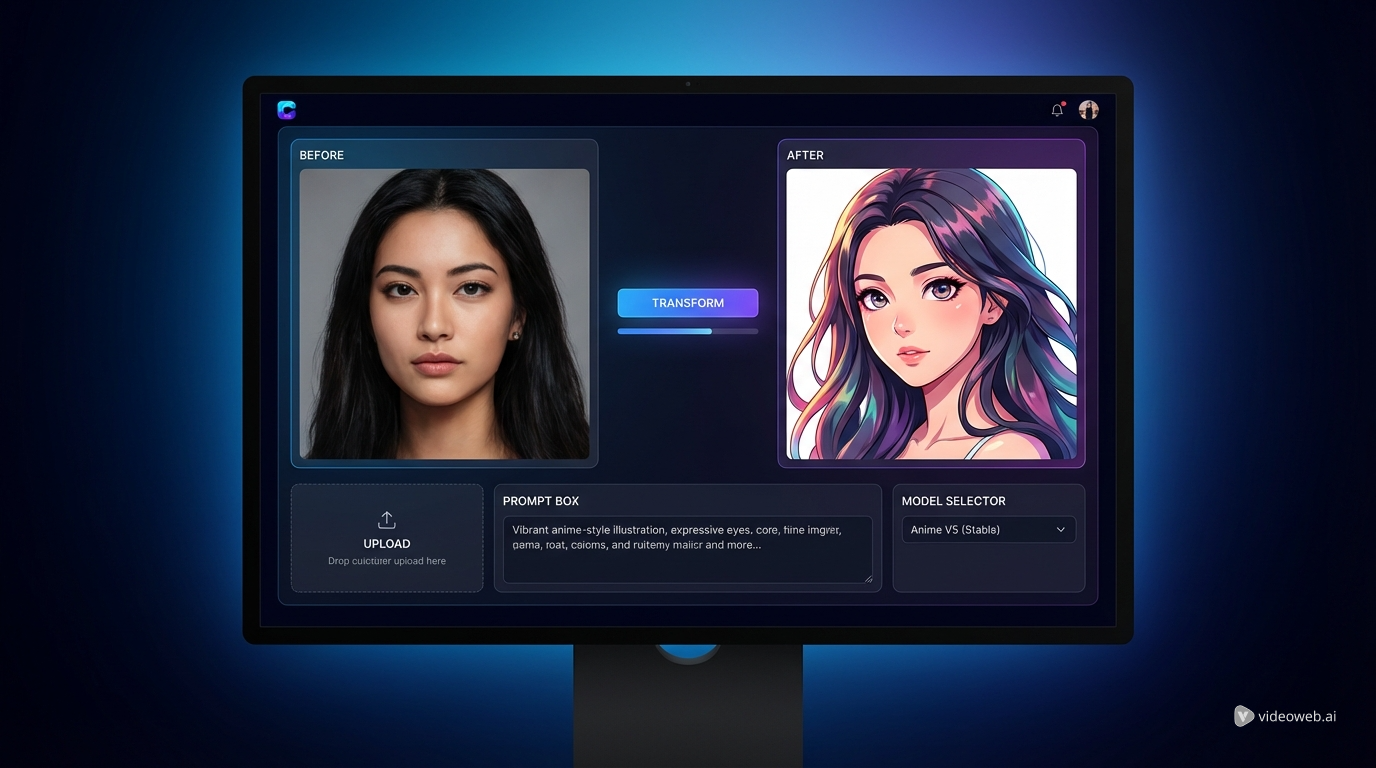
The interface in SeaImagine AI keeps the setup simple. From the screenshots, the workflow includes model selection, image upload, a prompt box, ratio settings, and output resolution. That gives you enough control to shape the result without making the tool feel overwhelming.
Seedream 4.5 appears as a default option, and the model picker also shows alternatives such as Seedream 5.0, Seedream 4.0, and Nano Banana. Each choice matters because different models emphasize different strengths. Some are better at realism and stable facial structure, while others are better for faster edits or more aggressive stylization.
This means the same Photo to Cartoon workflow can produce slightly different outcomes depending on the model you choose. If you want a result that keeps more of the subject’s original structure, start with a model known for cohesive compositions. If you want to experiment more boldly, test a different model on the same image and compare the results.
Format settings matter too. A 1:1 ratio works well for avatars and profile pictures. A wider layout may work better for banners or thumbnails. Higher resolution is useful if you want a more polished final image for posting, printing, or reusing across platforms.
Write a better prompt for cartoon or anime-style results
A short, specific prompt is usually enough. You do not need to describe every part of the photo. Instead, guide the model toward the mood and finish you want.
For example, you might ask SeaImagine AI to turn the image into a soft cartoon portrait, a polished anime-inspired character illustration, or a clean comic-style profile image. You can also steer the atmosphere with a few simple ideas: vibrant colors, expressive eyes, smooth shading, cute character design, cinematic lighting, or a warm fantasy tone.
The key is to keep the prompt focused. When people overload a request with too many style references, the image often becomes inconsistent. A stronger approach is to pair one clear intention with the Photo to Cartoon tool and let the model do the rest.
If you want more anime influence, prompt for elegant linework, bright eyes, polished character design, and soft illustrated shading. If you want a more general cartoon look, keep the request simpler and more playful.
Common problems and how to fix them
Most weak outputs come from a few predictable issues. Sometimes the face becomes too smooth and loses resemblance. Sometimes the eyes look flat, the hair changes too much, or the background feels disconnected from the subject. In other cases, the result is attractive but no longer looks enough like the original person.
When that happens, the fix is often simple. Use a better photo. Reduce background clutter. Make the subject larger in the frame. Simplify the prompt. Or switch to a model that preserves structure more consistently.
It also helps to generate more than one version. The first result is not always the best one. With a tool like Photo to Cartoon, small changes in prompt wording or image crop can make a noticeable difference.
If the result feels too generic, push the likeness more by starting with a clearer portrait. If it feels too realistic, strengthen the stylization language. If it feels too exaggerated, dial the prompt back and aim for a cleaner, more balanced cartoon finish.
Best ways to use the final image
Once you have a version you like, there are many practical ways to use it. Cartoon and anime-style portraits work especially well for avatars, creator branding, social media refreshes, blog graphics, channel art, stickers, and gift images. They also work as light character-concept references if you want to explore costume or color ideas based on a real person.
What makes SeaImagine AI useful here is speed. You can take one ordinary photo and quickly turn it into something more stylized and visually memorable. That is especially helpful for people who want something more artistic than a raw selfie but do not want to commission custom illustration every time.
In the end, the best way to get stronger results from Photo to Cartoon is to think in layers: start with a clean image, choose a model that matches your goal, guide the result with a short prompt, then compare multiple generations before choosing the final version. That process usually gives you the best balance between likeness, style, and shareability.
Recommended Tools and Models
- AI Image Generator for broader text-and-image creative workflows beyond direct cartoon conversion
- Image to Image for more controlled restyling while preserving the original composition
- Seedream 4.5 AI for cohesive compositions and strong facial consistency
- Seedream 5.0 AI for more structured editing and refined image control
- Nano Banana 2 AI for fast multi-image editing and alternate stylization passes
Related Articles
- How to Use Sea Imagine AI’s Image Generator: A Beginner-Friendly Tutorial
- The Seedream 5.0 AI Image-to-Image Analysis Guide 2026
- Nano Banana 2 vs Seedream 5.0: A Practical Comparison Guide
People Also Read
- HeyDream AI Image Generator Guide: Best Models for Text-to-Image and Image-to-Image
- Seedream 5.0 Image Generation Guide on HeyDream AI (Step-by-Step + Best Tools)
- Nano Banana Pro on DreamMachine AI: A Practical Way to Create Better AI Images
- Bringing Animated Magic to Life: Celebrating Children’s Day with Disney AI Generator