This Grok Imagine 1.5 video creation guide is for creators, marketers, product sellers, UGC editors, and AI video beginners who want a practical way to make short clips on SeaImagine AI. The goal is simple: use Grok Imagine-style video generation for text-to-video ideas, image-to-video animation, product concepts, social clips, and fast creative testing without pretending every first output is production-ready.
SeaImagine AI gives creators a browser-based workflow around the Grok Imagine model page, plus related text-to-video and image-to-video pages. The live pages were available during review on June 5, 2026, and the article keeps its guidance practical: choose a model, write a clear prompt, upload a start frame when useful, set output options, generate, review, and refine.

What Grok Imagine 1.5 Is Best Used For
Grok Imagine 1.5 is best treated as a short-form AI video creation workflow for visual experiments, not as a one-click replacement for filming, editing, and brand review. It is useful when you need to turn an idea or a still image into a short motion concept that can be tested, compared, and improved.
For creators, that means TikTok-style clips, YouTube Shorts concepts, social ad visuals, product mood videos, character motion tests, and cinematic scene ideas. For e-commerce teams, it can help create product reveal drafts, lifestyle clips, beauty visuals, fashion try-on concepts, and image-to-video ad experiments. For agencies, it can speed up concept boards before a real shoot or before committing to a more expensive production workflow.
The practical advantage is speed. You can test several ideas in SeaImagine AI, compare motion quality, and decide which direction deserves another generation pass. The practical caution is also clear: AI video output can vary by source image, prompt clarity, duration, aspect ratio, motion complexity, and current model behavior.

How to Use Grok Imagine on SeaImagine AI
The basic SeaImagine workflow is straightforward: open the Grok Imagine model page, decide whether to start from text or an image, describe the motion, choose settings, generate, and review the result. Treat the first generation as feedback rather than as the final edit.
A practical workflow looks like this:
- Open Grok Imagine on SeaImagine AI.
- Choose a text-to-video path if you only have an idea.
- Upload a start frame if you want image-to-video control.
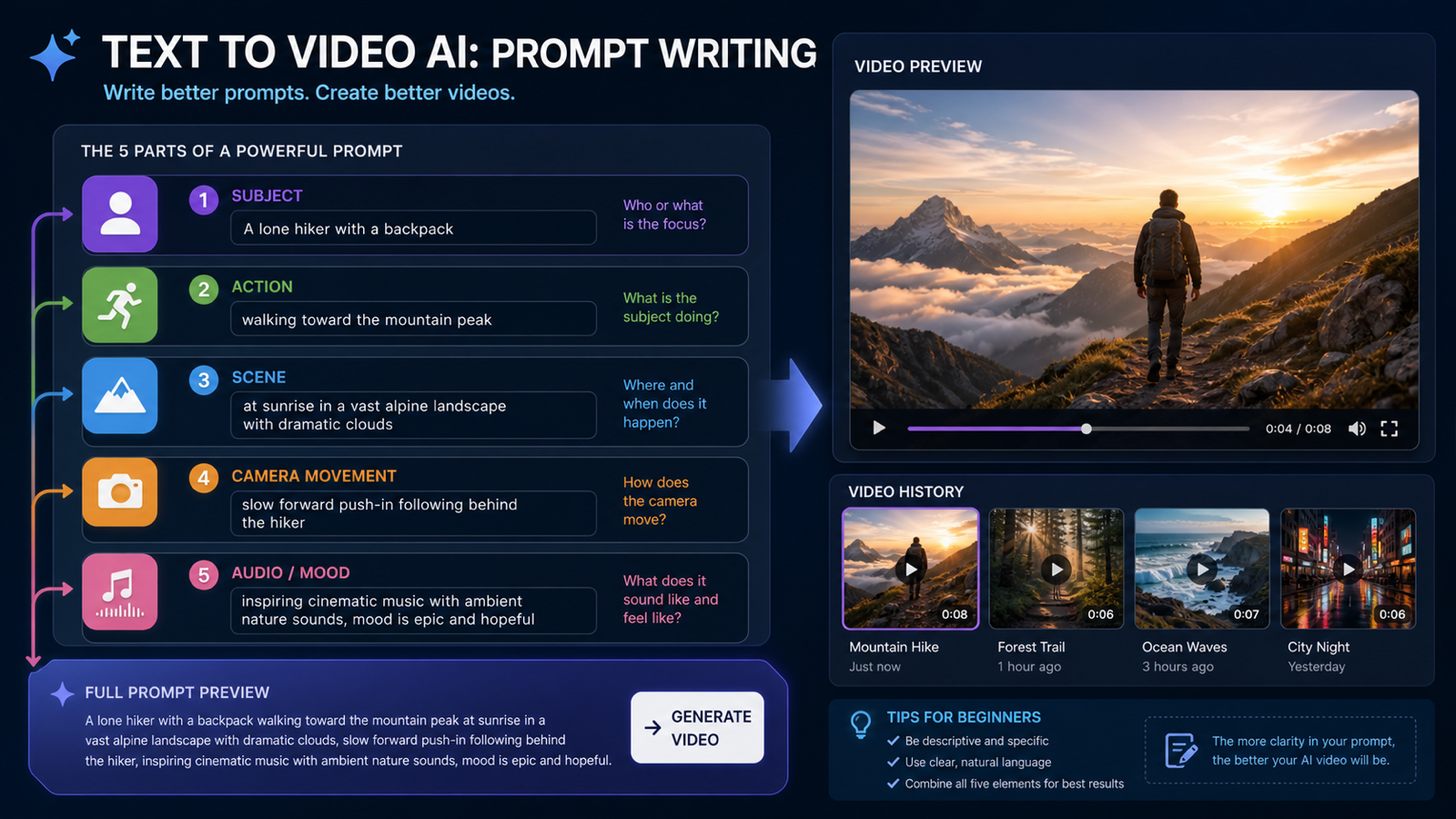
- Write a prompt with subject, scene, action, camera movement, lighting, mood, and audio direction.
- Choose ratio, duration, resolution, and visibility settings when available.
- Generate the video.
- Review the output for subject consistency, motion, artifacts, framing, and audio fit.
- Revise one or two prompt details, then generate again.
This is the most reliable way to use an AI video generator for creators: control one variable at a time. If you change the subject, camera movement, lighting, duration, and ratio all at once, you will not know which change improved or damaged the result.

Text-to-Video vs Image-to-Video: Which Should You Choose?
Use text-to-video when you want to create a clip from an idea. Use image-to-video when you already have a strong start frame and want the model to animate it. Both paths can work, but they solve different problems.
Text-to-video is faster for brainstorming. It is useful for cinematic scenes, social hooks, product concepts, simple story moments, and mood tests. The trade-off is that the model has to invent the entire visual frame from your prompt, so you need to describe the subject and environment clearly.
Image-to-video is better when visual consistency matters. If you already have a product photo, character image, fashion look, thumbnail, or concept art, a start frame gives the model a visual anchor. Your prompt can then focus on motion: slow push-in, gentle wind, product rotation, camera orbit, light movement, or handheld creator energy.
For product ads and UGC clips, image-to-video is often the safer starting point because the product can remain closer to the uploaded reference. Still, you should review every output for shape drift, label changes, hand issues, and unrealistic motion.

Reusable Grok Imagine 1.5 Prompt Formula
Good prompts for Grok Imagine 1.5 describe motion, not only appearance. A still-image prompt can say "a perfume bottle on a table," but a video prompt needs to say what happens over time.
Use this formula:
Create a [duration] AI video for [use case]. Scene: [subject] in [setting]. Action: [one clear movement or event]. Camera: [slow push-in / handheld / orbit / tracking shot / close-up / overhead]. Lighting: [natural / studio / cinematic / warm / neon / dramatic]. Mood: [UGC-style / luxury / educational / emotional / playful / cinematic]. Audio: [ambient sound / product sound / voiceover style / subtle music / no dialogue]. Format: [9:16 / 16:9 / 1:1]. Keep subject consistency, realistic motion, stable camera behavior, and clean composition.
For image-to-video, add a reference line:
Use the uploaded image as the fixed start frame. Preserve the subject shape, color, material, and main composition while adding only the requested motion.
For UGC videos, add creator context:
Make it feel like casual creator footage shot on a phone, with readable product close-ups, natural handheld movement, friendly pacing, and space for captions.
The key is restraint. One main subject, one main action, and one camera direction usually produce cleaner short clips than a crowded prompt with five actions.

Copy-to-Use Grok Imagine 1.5 Video Prompts
Use these prompts as starting points inside SeaImagine AI. Replace bracketed details with your own product, setting, or audience.
Create a 9:16 UGC-style product video for a skincare serum. A creator holds the bottle beside a bathroom mirror, applies a small drop to the back of the hand, and smiles naturally. Handheld phone-camera movement, soft morning light, realistic texture, friendly social ad mood, subtle bathroom ambience.
Create a cinematic product reveal for a wireless microphone. The mic rests on a clean desk, the camera slowly pushes in, and a creator clips it onto their shirt. Bright home-office lighting, clear product focus, natural motion, subtle click sound, 9:16 format.
Generate a fashion try-on clip from the uploaded outfit image. Preserve clothing shape, color, and fit. The model turns slowly toward the camera, fabric moves naturally, soft studio lighting, elegant editorial mood, 9:16 vertical video.
Create a product demo video for a portable blender. A creator adds fruit and milk, blends quickly, pours into a glass, and reacts with a smile. Casual kitchen setting, handheld camera, bright natural light, cheerful UGC ad style.
Create a coffee lifestyle video. A cup of hot coffee sits on a wooden cafe table while steam rises and sunlight moves across the surface. Slow cinematic pan, warm morning mood, soft cafe ambience, realistic steam motion.
Animate the uploaded product photo into a premium e-commerce video. Keep the product shape and packaging consistent. Add slow camera push-in, soft background light movement, realistic reflections, clean caption space, and no readable fake text.
Create a travel memory video. A person stands beside a mountain lake at sunset, jacket moving slightly in the wind, slow push-in camera, cinematic color grading, emotional atmosphere, soft natural ambience.
Create a faceless desk productivity video. Hands open a notebook, write a short to-do list, place coffee beside a laptop, and turn on a desk lamp. Overhead camera, warm lighting, calm productivity mood, no face shown.
These examples work because each prompt gives the model a scene, action, camera style, lighting, mood, audio direction, and format. After generating, adjust only the weakest part: motion, lighting, subject consistency, or camera framing.

Settings to Review Before You Generate
Settings should match where the clip will be used. A vertical UGC ad, a wide website banner, and a square product feed post need different framing, even if the subject is the same.
Check these settings before clicking generate:
- Ratio: use 9:16 for TikTok, Reels, Shorts, and most vertical ads; 16:9 for YouTube, landing pages, and presentations; 1:1 for square social placements.
- Duration: keep first tests short. Longer clips need simpler motion and clearer pacing.
- Resolution: choose the level that fits your review or publishing need, while remembering that availability and credit cost can change.
- Public or private visibility: use private settings for client work, brand drafts, unreleased products, personal images, or concepts that should not be shared.
- Start frame: upload a clean image when product or character consistency matters.
- Prompt tools: if SeaImagine offers prompt translation or optimization, review the result before generating so it does not add unwanted details.
The best habit is to create a small test set. Try one text-only version, one start-frame version, and one simplified-motion version. Compare them for prompt following, visual stability, camera realism, and output usability.

What to Check After Generation
Review is where AI video creation becomes useful. The output is not only "good" or "bad"; it is feedback about what the prompt and model understood.
Use this checklist:
- Subject consistency: does the person, product, outfit, or object stay stable?
- Motion: does the action feel natural, or does it warp, jump, or melt?
- Camera behavior: does the push-in, orbit, handheld movement, or pan feel physically plausible?
- Product accuracy: did the model change label placement, color, shape, or size?
- Hands and faces: do hands, eyes, teeth, and facial movement look natural enough for the use case?
- Audio direction: if audio is included, does it support the scene without distracting from it?
- Platform fit: does the clip leave space for captions, product name, hook text, or call-to-action?
- Policy and rights: can you publish this safely based on product claims, likeness rights, music rights, privacy, and platform rules?
If the output is close but not usable, revise narrowly. For example, change "fast camera orbit" to "slow push-in," or replace "busy street market" with "minimal studio background." Narrow edits teach you more than total prompt rewrites.

Recommended SeaImagine Workflow for Creators and Marketers
SeaImagine AI is a useful place to test Grok Imagine 1.5 because it connects model-specific generation with broader creator workflows. You can use the Grok Imagine page for model testing, the text-to-video page for prompt-only experiments, and the image-to-video page for start-frame animation.
For creators, a simple weekly workflow could be:
- List five social hooks or product angles.
- Create one prompt for each angle.
- Generate a vertical version for each.
- Pick the strongest two outputs.
- Rewrite those prompts with clearer motion and simpler scenes.
- Save the best clip ideas for editing, captioning, or further production.
For marketers, the same workflow can be used for ad concept testing. Test the same product with a UGC angle, product demo angle, lifestyle angle, tutorial angle, and cinematic reveal angle. Do not choose based only on visual polish; choose based on whether the clip communicates the product clearly and honestly.
Related SeaImagine resources:
- Grok Imagine AI model on SeaImagine
- SeaImagine Text to Video
- SeaImagine Image to Video
- SeaImagine AI homepage

FAQ
Is Grok Imagine 1.5 good for beginners?
Yes, it can be beginner-friendly if you keep the workflow simple: choose text or image input, write one clear action, set the right ratio and duration, generate, then review the result. Beginners should avoid overloaded prompts until they understand how the model responds.
Should I start with text-to-video or image-to-video?
Start with text-to-video when you are brainstorming a scene from scratch. Start with image-to-video when you already have a product photo, character image, fashion look, or visual reference that should stay consistent.
What is the best prompt style for Grok Imagine 1.5?
Use a structured prompt with subject, scene, action, camera movement, lighting, mood, audio direction, and format. Keep the action simple and make the camera behavior realistic.
Can I use Grok Imagine videos for paid ads?
Possibly, but do not publish without review. Check commercial usage rights, product claims, likeness issues, privacy settings, music or audio rights, and platform ad policies before using generated clips commercially.
How do I improve bad outputs?
Simplify the prompt, reduce motion complexity, use a cleaner start frame, shorten the duration, and revise one variable at a time. If the subject keeps changing, use image-to-video with a stronger source image.

Conclusion
Grok Imagine 1.5 video creation works best when you treat SeaImagine AI as a testing workspace, not a final-answer machine. Start with a clear idea, choose text-to-video or image-to-video, write a motion-aware prompt, set ratio and duration intentionally, then review the output with a real publishing checklist.
For creators and marketers, that workflow is practical: it helps you test social clips, product videos, UGC-style ads, cinematic scenes, and image-to-video concepts faster. The strongest results still come from human direction, careful review, and honest editing before publication.
Start with SeaImagine AI or open the Grok Imagine model page to test your first prompt.