If you have been curious about AI video lately, there is a good chance you have seen people talking about Seedance 2.0. But most write-ups stop at the same point: they say it is powerful, cinematic, and exciting, then leave you to figure out the actual workflow on your own.
This article takes a more practical route. Instead of treating the model like a buzzword, it looks at how to use ByteDance Seedance 2.0 on SeaImagine AI in a way that is simple, useful, and viewer-first. The goal is not to generate the most complicated clip possible. The goal is to make short videos that look cleaner, feel more intentional, and give you a better result without burning through credits.
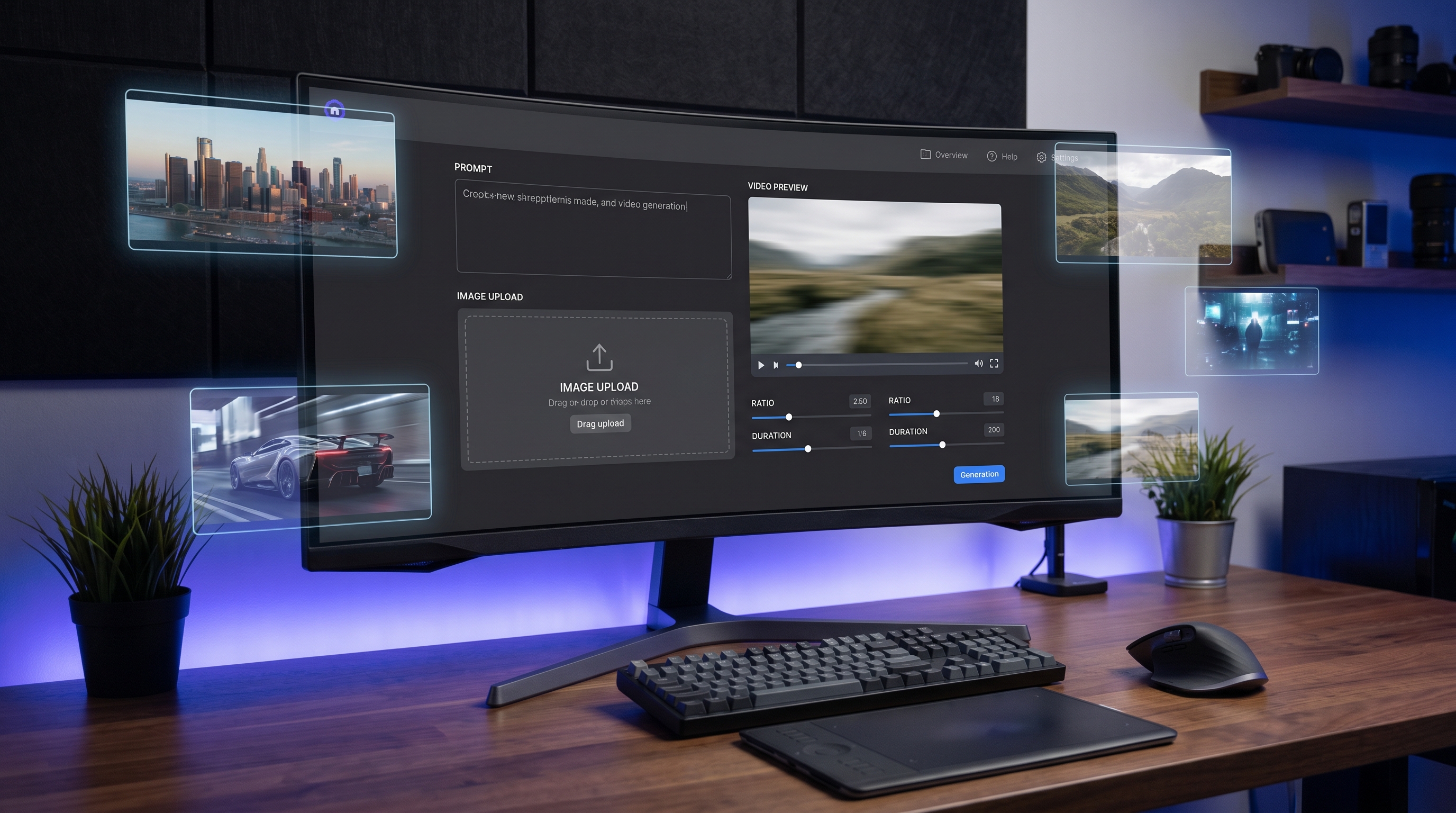
SeaImagine AI gives you a direct way to try the model through its Seedance 2.0 access page. From there, the workflow is clear enough for beginners: choose the model, upload a starting image if you want one, add an optional end frame, type your prompt, decide whether to enable audio, then set the resolution, duration, and aspect ratio before generating. That makes it much easier to learn the model through doing rather than through theory.
Why Seedance 2.0 is worth learning
The appeal of Seedance 2.0 AI is not just that it can generate motion from a prompt. What makes it interesting is the way it combines multiple inputs and tries to turn them into a more coherent short-form video workflow. It is designed for text, image, audio, and video input, which means it fits both experimentation and more guided generation.
For everyday creators, that matters because short AI clips are usually not judged on technical novelty. They are judged on whether people will keep watching. A five-second clip with a clear subject, natural motion, and a strong mood usually works better than a messy prompt full of grand cinematic language.
That is why a viewer-first approach makes more sense than a model-first one. If you are using Seedance 2.0 video generation, the smartest mindset is to think about what the viewer sees in the first second, what changes in the clip, and why the movement feels worth watching.
Getting started on SeaImagine AI
The easiest way to begin is to treat SeaImagine AI like a guided creation space rather than a blank lab. On the Seedance 2.0 AI video page, you can see the main controls up front, which makes the process less intimidating.
A beginner-friendly run usually looks like this:
- Select the model.
- Upload a start frame if you already have an image.
- Add an end frame only if you want more controlled visual progression.
- Write a prompt that describes one scene clearly.
- Choose whether audio should be enabled.
- Set your resolution, clip length, and aspect ratio.
- Generate a few variants instead of betting on one single output.
This workflow is useful because it encourages restraint. Too many people jump into AI video expecting one prompt to create a polished ad, mini-film, or animated scene on the first try. In reality, better results usually come from starting with one clean idea and then adjusting small details.
The best first prompt strategy
When people struggle with AI Seedance 2.0, it is often because their first prompt tries to do too much. A more reliable approach is to build the prompt around five things only: subject, setting, action, camera, and mood.
For example, instead of writing a giant paragraph, try something like this structure:
- subject: a young woman in a yellow raincoat
- setting: standing on a quiet city street at night
- action: she looks up as neon reflections ripple across the wet pavement
- camera: slow push-in
- mood/style: cinematic, soft rain, cool blue lighting
That gives the model something visual and filmable. It is much easier for a Seedance 2.0 AI video workflow to deliver a strong short clip when the action is readable and the scene is not overloaded.
If you want to test audio, do it deliberately. Do not enable it just because the option is there. Ask yourself whether sound actually improves the clip. If the goal is a moody cinematic fragment, ambient rain or urban sound may help. If the goal is a product teaser for social media, silent visuals might be cleaner.
How to get better results without wasting credits
A lot of improvement comes from prompt discipline rather than from hidden tricks. The most useful habits are simple.
Describe a shot, not an entire story. Seedance works better when it is asked to stage one moment rather than summarize a whole plot.
Keep the motion believable. A subject turning, walking, looking over their shoulder, or interacting with one clear object usually works better than multiple rapid actions.
Use camera movement only when it adds something. Beginners often stack phrases like aerial shot, dramatic zoom, orbit camera, handheld motion, and slow motion into one prompt. That usually creates noise, not elegance.
Generate variants before rewriting everything. If the scene is almost right, change one element at a time. Adjust the action, framing, or mood, then rerun. That is a better use of credits than replacing the entire prompt every round.
Use start and end frames with intention. The start frame is especially helpful when you already have a strong image and want the model to preserve the visual identity more closely. An end frame can help when you want a clearer destination for the motion.
When to use Seedance 2.0 and when not to
One of the most helpful things a tutorial can do is tell readers when not to force the featured model into every task.
Use Seedance 2.0 access on SeaImagine AI when you want expressive short clips, stronger prompt-driven motion, or a workflow that can incorporate audio and image guidance.
But if you already have a polished still image and mainly want stable animation, an image-to-video workflow may be easier. If you simply want quick concept clips from a text prompt, a broader text-to-video tool may feel faster. In other words, Seedance 2.0 is strong, but it is not the answer to every video job.
That is actually good news for readers. It means you do not need to force one tool to do everything. You can use the model where it shines and switch workflows when the project changes.
Common mistakes to avoid
The biggest mistake is writing prompts that are too ambitious for a short clip. If your duration is only a few seconds, the motion should stay focused.
Another common issue is relying on cinematic keywords without describing the actual scene. Words like epic, stunning, or masterpiece do not give the model enough real visual direction.
A third mistake is ignoring the destination platform. If the clip is meant for mobile, choose the ratio accordingly. If it is meant for a quick teaser, keep the duration tight. Good AI video is not just about generation quality. It is also about format fit.
Finally, do not assume the first result is the finished result. The real workflow is usually prompt, generate, review, refine, then rerun.
A simple viewer-first workflow you can repeat
Here is the easiest repeatable method for using Seedance 2.0 video on SeaImagine AI well.
Start with the purpose of the clip. Is it for mood, storytelling, promotion, or testing an idea?
Then write the simplest prompt that expresses that purpose clearly. Add only one main action. Choose audio only if it supports the result. Match the ratio to the platform. Generate a few versions. Keep the best one. Then change one variable at a time on your next round.
That process may sound basic, but it is exactly what makes AI video feel more controlled and less random.
Final thoughts
ByteDance Seedance 2.0 is interesting because it gives creators a more flexible path into AI video without requiring a fully technical workflow. On SeaImagine AI, the interface makes that process more approachable, especially for people who want to test prompts, images, and short-form ideas quickly.
The most useful way to approach it is not to chase the most complicated result. It is to build short clips with clear intent, simple visual language, and viewer-first motion. That is where the model feels most practical.
If you start there, you will get much more out of the tool.
Recommended Tools
- SeaImagine Text to Video for faster prompt-only video experiments.
- SeaImagine Image to Video when you want to animate a still image with stronger visual continuity.
- SeaImagine AI Hug Video Generator for social-friendly character and photo animation.
- SeaImagine AI Baby Dance Generator for playful short-form video ideas.
- SeaImagine AI Image Generator for creating source images before moving into video.
Related Article
- SeaImagine AI Text-to-Video Guide: How to Choose Models and Create Better Clips
- The 2026 Image-to-Video Guide for Sea Imagine AI: Best Models & Prompts
- How to Use Sea Imagine AI’s Image Generator: A Beginner-Friendly Tutorial
- How to Turn Ordinary Photos into Cartoon and Anime-Style Art with SeaImagine AI
People Also Read
- How to Use HeyDream AI’s Text-to-Video Generator: Model Comparison, Prompting Tips, and Workflows
- Seedance 2.0 vs Seedance 1.0: What’s Better for AI Video
- The Release of Seedance 2.0: What Dropped, What’s New, and What Creators Should Do Next
- Seedance 2.0 Video Generation Guide: How to Create Better AI Videos
- Seedance 2.0 Video Generation Guide (Tutorial + Prompts)
- How to Use Seedance 2.0 for Anime Clips: Prompt Examples and Scene Ideas
- Seedance 2.0 Access and Pricing Guide: Where It Stands Now and What AIFacefy Adds
- Higgsfield AI vs AIFacefy AI for Seedance 2.0: Which Creator Workflow Wins?